Tricks and Tweaks for WINDOWS 7
Here are 20 ways to get around the Windows 7 interface and make it act the way you want.
By Safal Panthy
We'll start with a few nifty tips that can make your desktop more interesting, make it easier to get around and increase your computer's power efficiency.
Use hidden international wallpapers and themes
When you first install Windows 7, it asks for your language, time and currency. Based on your responses, it installs a set of wallpapers and themes. If you choose English (United States) for your time and currency format, for example, the available desktop backgrounds and themes will include a United States section with scenery from locations such as Maine, the Southwest and so on.
Hidden, though, are background scenery and themes from other English-speaking countries -- Australia, Canada, Great Britain and South Africa. Normally, you can't access those backgrounds or themes, but there is a simple way you can install and use them:
1. In the search box in the Start menu, type
C:\Windows\Globalization\MCT and press Enter. (Note: If Windows 7 is installed in a drive other than C:, use that letter instead.)
2. Windows Explorer will launch and show you a list of subfolders under
C:\Windows\Globalization\MCT: MCT-AU, MCT-CA, MCT-GB, MCT-US, and MCT-ZA. Each subfolder has wallpapers for a specific country: AU for Australia, CA for Canada, GB for Great Britain, US for the United States, and ZA for South Africa.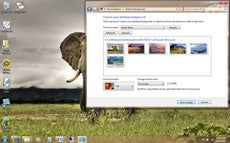
For any of the countries whose wallpaper and themes you want to use, go into its Theme folder, for example,
C:\Windows\Globalization\MCT\MCT-ZA\Theme. Double-click the theme you see there (for example ZA).
3. That will install a shortcut to the theme and wallpapers in the Personalization section of Control Panel.
You can now use them as you would any other theme or background, by right-clicking the desktop, choosing Personalize, and choosing a background or theme. They will be listed in their own section.
..
....
Start Menu tips
Many people overlook the Start Menu, rarely using it except as a jumping off point to run an application or get to the Control Panel. But there's actually plenty you can do with it.
Search the Internet from the Start Menu
Note: This tip relies on the Group Policy Editor, which isn't available in some versions of Windows 7. Thus, this tip will not work if you have the Home Premium, Starter, or Home Basic editions of Windows 7.
The Start Menu's search box is a convenient way to search through your PC -- but you can also have it do double-duty and perform Internet searches as well. To enable this feature:
1. In the Start Menu search box, type
GPEDIT.MSC and press Enter to run the Group Policy Editor.
2. Go to User Configuration --> Administrative Templates --> Start Menu and Taskbar.

3. Double-click "Add Search Internet link to Start Menu," and from the screen that appears, select Enabled. Then click OK and close the Group Policy Editor.
4. From now on, when you type a search term in the Search box on the Start Menu, a "Search the Internet" link will appear. Click the link to launch the search in your default browser with your default search engine.
...
......
...
...........
Add a Videos link to the Start Menu
The Windows 7 Start Menu includes links to your Pictures and Music folders, but not to your Videos folder. If you watch a lot of videos and want a link to them on your Start Menu, here's what you can do:

1. Right-click the Start button and select Properties.
2. On the screen that appears, go to the Start Menu tab and click Customize.
3. In the dialog box that appears, scroll to the bottom, look for the Videos section, select "Display as a link," and click OK and then OK again.
If you'd prefer that Videos display as a menu, with links to files and submenus, instead select "Display as a menu."
...
..........
Set a new Windows Explorer launch folder
When you run Windows Explorer, it always opens to the Libraries folder. That's fine if you use Microsoft's default file organization, which designates Libraries as the overall container for your folders.
But what if you don't? You might prefer to have Windows Explorer open to Computer or any other folder you choose. Here's how to do it:

1. Right-click the Windows Explorer icon on the taskbar (it's the one that looks like a folder), and then right-click the Windows Explorer icon from the context menu that appears and select Properties. The Windows Explorer Properties dialog box appears.
2. You'll have to edit the Target field on the Shortcut tab of this dialog box in order to change the default location at which Explorer opens.
If you want Explorer to open to a specific folder, simply enter the name of the folder, substituting your folder name for Folder, below, like this:
%windir%\explorer.exe c:\<i>Folder</i>
So to open Explorer to the folder named Budget, you would type this in the Target field:
%windir%\explorer.exe c:\Budget
If you want Explorer to open to special, pre-set locations, such as Computer, you'll need to enter special syntax in the Target field. Following is a list of three common locations and the syntax to use, followed by the syntax for the Libraries folder in case you ever want to revert to the default.
- Computer:
%windir%\explorer.exe ::{20D04FE0-3AEA-1069-A2D8-08002B30309D} - My Documents:
%windir%\explorer.exe ::{450D8FBA-AD25-11D0-98A8-0800361B1103} - Network:
%windir%\explorer.exe ::{208D2C60-3AEA-1069-A2D7-08002B30309D} - Libraries:
%SystemRoot%\explorer.exe
Comments
Post a Comment